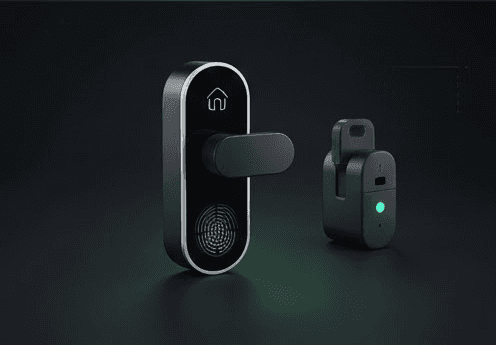
The Schlage Encode smart lock won't connect to WiFi when your router settings are incompatible or the WiFi signal is too weak at your door location. The Encode uses built-in 2.4GHz WiFi only and requires specific router configurations to connect properly.
Quick Answer
- Use Schlage Home app → Add Lock → follow WiFi setup wizard
- Router must broadcast 2.4GHz network with WPA2 security
- Disable AP Isolation in router settings
- Enable DHCP on your router
- Test WiFi signal strength by holding phone at door location
- Factory reset lock if it appears in app but won't connect: enter programming code + Schlage button
Symptoms You Have This Problem
- Schlage Home app says "Unable to connect to WiFi" during setup
- Lock pairs with app but shows "Offline" status
- Setup fails at "Connecting to Network" step
- Lock connects initially but goes offline within hours
- App displays "WiFi Setup Failed" error message
Quick Checks Before Full Fix
- Hold your phone at the door location - check WiFi signal bars
- Confirm your router broadcasts 2.4GHz (not 5GHz only)
- Verify you're using WPA2 security (not WEP or open network)
- Check if other 2.4GHz devices work near your door
- Ensure lock has fresh AA batteries (low power affects WiFi)
Step-by-Step Fix
-
Check router settings: Log into your router admin panel → Wireless Settings → confirm 2.4GHz band is enabled with WPA2 security
-
Disable AP Isolation: Router Settings → Advanced Wireless → turn off "AP Isolation" or "Client Isolation" (prevents devices from talking to each other)
-
Enable DHCP: Network Settings → DHCP Server → set to "Enabled" (lets router assign IP addresses automatically)
-
Test signal strength: Stand at your door holding your phone → check WiFi signal shows 3+ bars minimum
-
Delete lock from app: Schlage Home app → Settings → Remove Device (if lock already appears in app)
-
Factory reset the lock: Enter your programming code → press Schlage button → wait for green light and two beeps
-
Re-add lock: Schlage Home app → Add Lock → scan QR code on lock → follow WiFi setup prompts
-
Stay close during setup: Keep phone within 3 feet of lock throughout entire pairing process
If Schlage Encode Still Won't Connect to WiFi
Check router frequency bands: Many routers combine 2.4GHz and 5GHz into one network name. Create separate network names or use guest network (usually 2.4GHz only).
Update lock firmware: Schlage Home app → Lock Settings → check for firmware updates. Version 10.2+ required for latest features.
Router restart timing: Some ISPs push updates at 2-4 AM causing disconnections. Contact ISP if lock goes offline nightly at same time.
WiFi extender solution: If signal is weak at door, add a 2.4GHz WiFi extender. Position halfway between router and door.
Encode Plus Apple Home Key: Requires Apple Home Hub (HomePod, Apple TV, or iPad) to function with Apple Home app.
FAQ
Why does my Schlage Encode keep disconnecting from WiFi? WiFi drains battery faster than Bluetooth locks. Replace 4x AA batteries every 3-4 months. Also check if your ISP pushes router updates overnight causing temporary disconnections.
Can Schlage Encode connect to 5GHz WiFi? No. Schlage Encode only supports 2.4GHz networks. If your router broadcasts combined bands, create separate network names or use guest network.
What does AP Isolation do and why disable it? AP Isolation prevents connected devices from communicating with each other. Smart locks need this disabled to receive commands from your phone through the router.
Does Schlage Encode support Matter? Yes, but requires firmware version 10.2 or higher. Update through Schlage Home app → Lock Settings → Firmware Update.