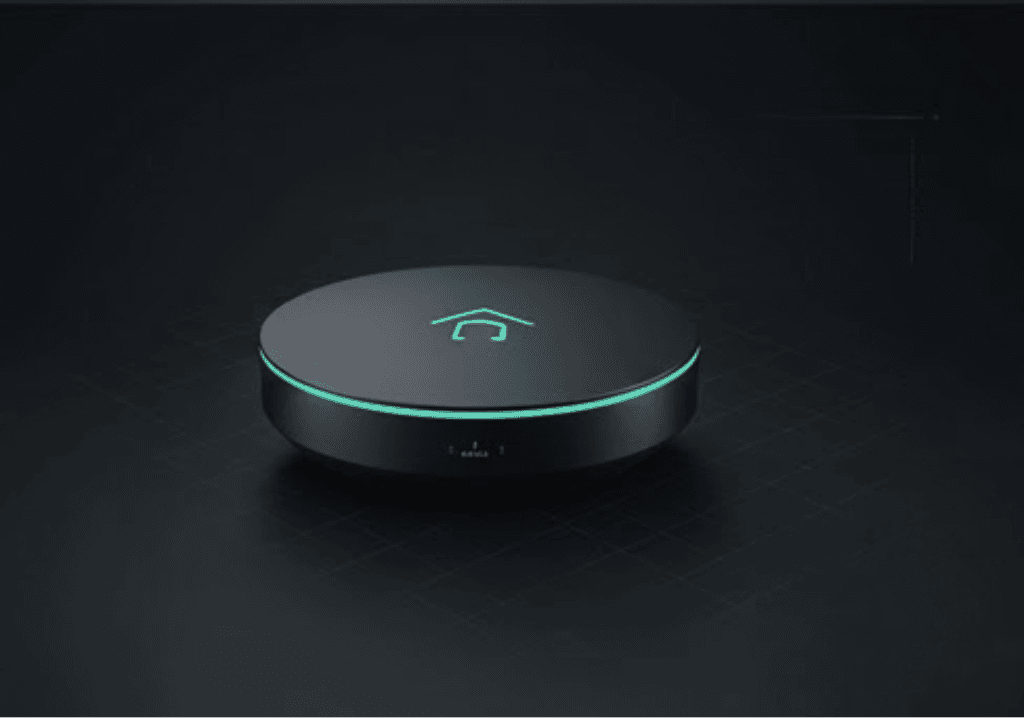
When your Rachio smart sprinkler controller shows as "Controller Offline" in the app, it's stuck at a specific step of the boot process. The light bar's four quadrants tell you exactly where the failure occurs: usually Wi-Fi association (Quadrant 2) or cloud connection (Quadrant 4).
Quick answer
- Identify the flashing quadrant on the light bar to pinpoint the failure
- If Quadrant 2 flashes: Wi-Fi connection failed — check password/SSID or switch router from WPA3 to WPA2/WPA3 mixed mode
- If Quadrant 4 flashes: Internet blocked — disable IoT security features and check firewall settings for port 8883
- If white pulsing: Boot loop — factory reset by holding Stop button until light bar fills blue
Symptoms
- App displays "Controller Offline"
- Light bar is pulsing white, red, or amber
- Sprinklers run on stored schedule, but manual control doesn't work
- Cannot access controller settings or scheduling
Quick checks
- Check the light bar pattern — note which quadrant is flashing or if the entire bar pulses white
- Verify Wi-Fi router is online — test internet on your phone from the same location
- Confirm recent network changes — did you change Wi-Fi password, SSID, or router settings?
Step-by-step fix
For Quadrant 2 flashing (yellow/red):
- Open the Rachio app and navigate to Settings → Controller Settings → Update Wi-Fi Network
- Enable Bluetooth on your phone and stand within 10 feet of the controller
- Select your network and enter the correct Wi-Fi password
- Check router settings — if using WPA3 Only mode, change to WPA2/WPA3 Mixed mode in router admin panel
- Wait 2-3 minutes for the controller to complete connection
For Quadrant 4 flashing (red):
- Access your router's admin panel and temporarily disable IoT security features (Eero Secure, Netgear Armor, etc.)
- Check firewall settings — ensure port 8883 (MQTT) is not blocked for outbound connections
- Verify DNS resolution — try switching router's DNS to 8.8.8.8 and 8.8.4.4
- Power cycle the Rachio — unplug for 30 seconds, then reconnect
- Monitor light bar — should progress through all four quadrants to solid blue
For white pulsing (boot loop):
- Locate the Stop button (circle with square icon) on the controller
- Press and hold the Stop button until the light bar fills completely blue
- Release immediately — do not continue holding after blue fill
- Reconfigure from scratch using the Rachio app setup wizard
If it still isn't working
- Check physical mounting — if installed in a metal enclosure, the Wi-Fi signal is blocked by Faraday cage effect; move to plastic enclosure
- Test different Wi-Fi band — force connection to 2.4GHz network if your router broadcasts dual-band
- Contact your ISP — some providers block IoT traffic on certain plans
- Inspect for surge damage — if no lights appear when powered, internal fuse may be blown from lightning strike
FAQ
What do the four quadrants represent? Quadrant 1 (left): Power boot, Quadrant 2: Wi-Fi local connection, Quadrant 3: Internet/gateway check, Quadrant 4 (right): Rachio cloud connection.
Why does my Rachio keep disconnecting from Wi-Fi? Usually caused by WPA3 compatibility issues or weak signal strength. Switch router to WPA2/WPA3 mixed mode and ensure controller isn't mounted in metal enclosure.
Can I use Rachio without internet connection? Yes, stored schedules continue running locally, but you lose remote control and smart features like weather skip and app control.
How long should the boot process take? Normal boot takes 2-3 minutes to progress through all four quadrants. If stuck on one quadrant for over 5 minutes, troubleshoot that specific step.