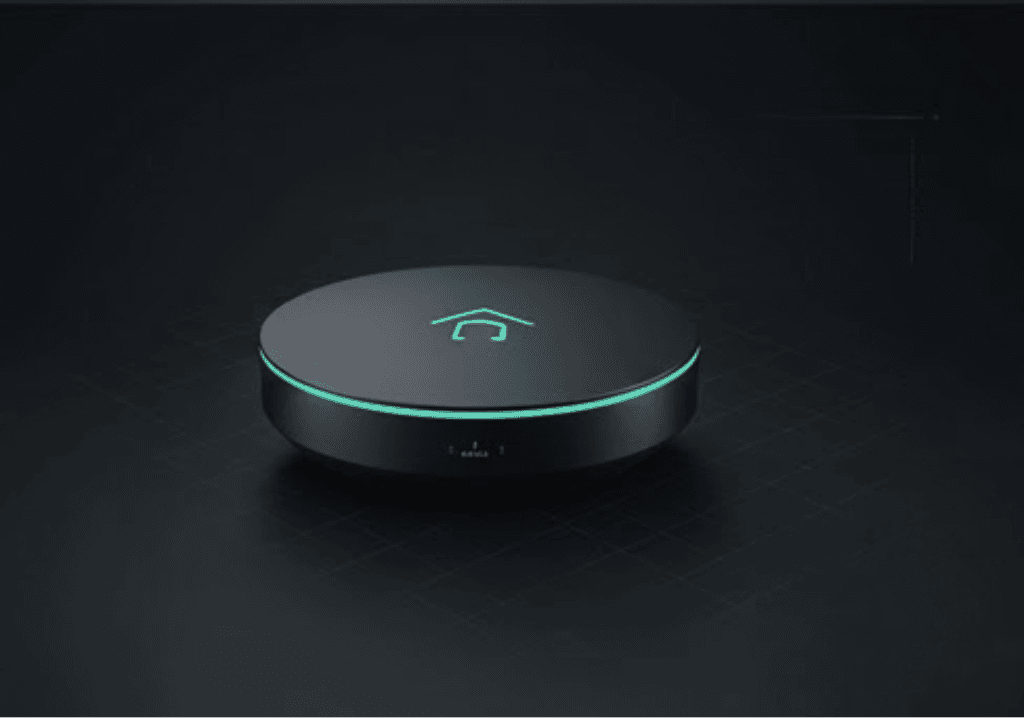
Blink no response
Quick answer
- Restart your Blink camera and sync module.
- Check your Wi-Fi connection and ensure it's stable.
- Update the Blink app to the latest version.
Symptoms
- Blink camera does not respond to commands.
- Live view is unavailable or shows a loading screen.
- Notifications are not being received.
Quick checks
- Ensure the camera is powered on.
- Verify that the sync module is connected to your Wi-Fi.
- Check for any physical obstructions around the camera.
Step-by-step fix
-
Restart your devices:
- Unplug the Blink sync module from power.
- Wait for 10 seconds, then plug it back in.
- Restart the Blink camera by removing and reinserting the batteries.
-
Check Wi-Fi connection:
- Ensure your Wi-Fi network is operational.
- Use a smartphone or computer to test the internet connection.
- If necessary, restart your router.
-
Update the Blink app:
- Open your device’s app store.
- Search for the Blink app and check for updates.
- Install any available updates.
-
Re-sync your camera:
- Open the Blink app.
- Go to the camera settings and select the option to re-sync.
- Follow the prompts to complete the process.
-
Check for firmware updates:
- In the Blink app, navigate to the settings.
- Look for firmware updates for your devices and install them if available.
If it still doesn't work
- Reset the Blink camera to factory settings:
- Press and hold the reset button on the camera until the light blinks red.
- Follow the setup process in the Blink app again.
- Contact Blink support for further assistance.
FAQ
Q: Why is my Blink camera not responding?
A: Common reasons include Wi-Fi issues, outdated app versions, or power problems.
Q: How can I tell if my Blink camera is powered?
A: Check if the LED indicator is lit. If not, replace the batteries or check the power source.
Q: What should I do if my camera is offline?
A: Ensure the sync module is connected to Wi-Fi and restart both the module and the camera.
Q: Can I use Blink without Wi-Fi?
A: No, Blink cameras require a stable Wi-Fi connection to function properly.
Q: How do I update my Blink app?
A: Go to your device’s app store, search for Blink, and install any available updates.
Related fixes
- How to improve Blink camera connectivity
- Troubleshooting Blink app issues
- Resetting your Blink camera
For additional equipment, consider checking out View on Amazon (paid link).