Arlo no response
Quick answer
- Restart your Arlo device and base station.
- Check your internet connection and Wi-Fi signal strength.
- Ensure the device is charged or plugged in.
- Update the Arlo app to the latest version.
Symptoms
- Arlo camera or device does not respond to commands.
- Live feed is not accessible.
- Notifications are not being received.
- Device appears offline in the app.
Quick checks
- Verify that your Arlo device is powered on.
- Confirm that your smartphone or tablet is connected to the internet.
- Check for any app updates in your device's app store.
- Look for any error messages in the Arlo app.
Step-by-step fix
-
Restart the Arlo device:
- Unplug the device from power.
- Wait for 10 seconds, then plug it back in.
-
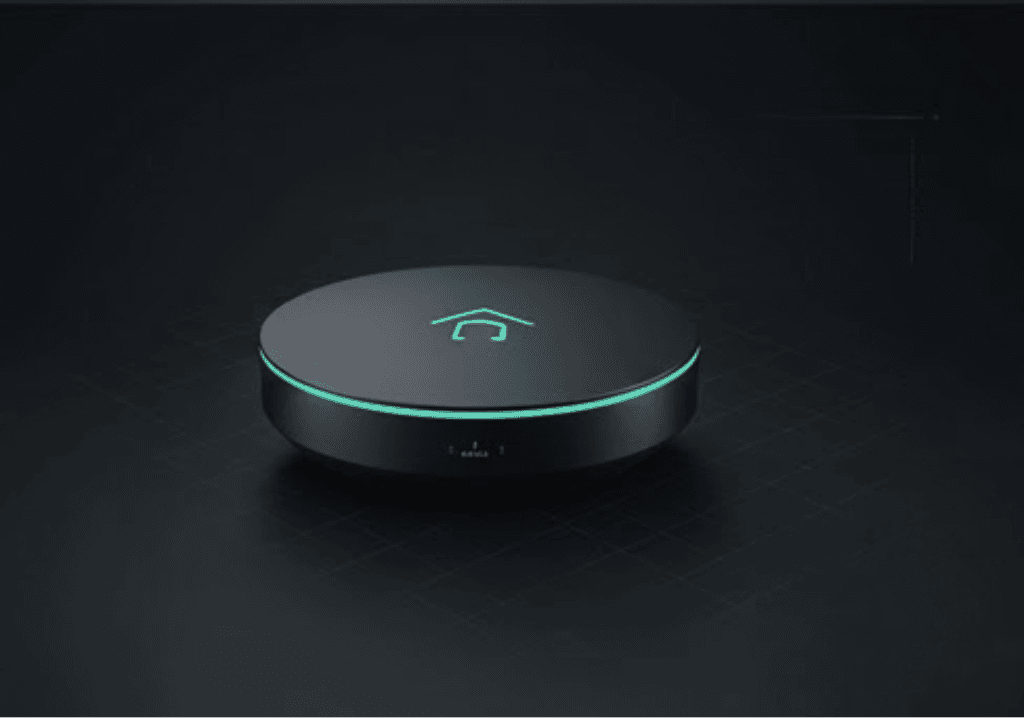
Restart the base station:
- Unplug the base station.
- Wait for 10 seconds, then plug it back in.
-
Check your internet connection:
- Test your Wi-Fi on another device.
- If your Wi-Fi is down, reboot your router.
-
Check device battery:
- If using a battery-operated camera, ensure it is charged.
- Replace the battery if necessary.
-
Update the Arlo app:
- Go to your app store and check for updates.
- Install any available updates.
-
Re-sync the device:
- Press the sync button on the base station.
- Follow the prompts in the Arlo app to re-add your device.
If it still doesn't work
- Reset the Arlo device to factory settings:
- Locate the reset button (usually a small pinhole).
- Press and hold for about 10 seconds until the LED blinks amber.
- Contact Arlo support for further assistance.
FAQ
Q: Why is my Arlo camera not responding?
A: This could be due to a poor internet connection, low battery, or software issues.
Q: How do I know if my Arlo device is offline?
A: Check the Arlo app; it will indicate if the device is offline.
Q: What should I do if my Arlo app is not updating?
A: Ensure your device has enough storage and a stable internet connection.
Q: How can I reset my Arlo camera?
A: Use the reset button on the device to restore factory settings.
Q: Why are my notifications not coming through?
A: Check your app settings and ensure notifications are enabled.
Related fixes
- Arlo camera not connecting to Wi-Fi
- Troubleshooting Arlo app issues
- How to improve Arlo camera performance
For additional equipment, check View on Amazon (paid link).